5 Common Wi‑Fi Problems and How to Fix Them with a Tester
For busy installation and support teams, Wi‑Fi issues often trace back to a few repeat offenders. A professional tester helps you move from symptoms to root cause by measuring signal strength, noise, channel utilization and basic network reachability. With objective results, you can make targeted changes and document the fix for your client or change record.
In this blog, we explore 5 of the most common Wi-Fi problems and the solutions to fix them:
1) Slow speeds and buffering
If users report sluggish browsing or poor video quality, start by checking channel load and signal quality at the desk. A tester that scans nearby access points will highlight congested channels and overloaded access points (APs), and simple diagnostics like ping and traceroute quickly show whether the slowdown is upstream. Where possible, steer clients to cleaner channels or to 5 GHz or 6 GHz.
2) Dead zones and weak signal
Dead spots usually come from attenuation through building materials or APs mounted too far from the busy area. Aim for roughly −67 dBm or better for dependable performance. Use your tester to walk the site, log weak areas, then reposition APs or add coverage where readings stay below threshold.
3) Interference and crowded channels
Performance that varies by time of day often points to interference. Microwaves, Bluetooth and neighboring networks are common culprits, especially in 2.4 GHz. Use channel view and utilization graphs to find overlaps and conflicts, then re‑plan channels.
Prefer 20 MHz channels in 2.4 GHz, and select non‑overlapping 40 or 80 MHz channels in 5 GHz where spectrum allows.
4) High latency and unstable calls
Choppy Teams or Zoom sessions typically mean high latency or jitter. Run quick tests to the gateway and a trusted internet host, then correlate results with channel load and signal quality. If wireless looks clean, check the wired backhaul, VLAN and WAN path to isolate bottlenecks before you reconfigure Wi‑Fi.
5) Frequent disconnects and roaming issues
If devices drop when people move, measure handoff points and look for sticky client behavior. Record signal strength where clients disconnect and review overlapping coverage to encourage smoother roaming. Tuning minimum data rates and access point placement helps devices move sooner to the nearest access point.
How SignalTek QT speeds up troubleshooting for installers and IT teams
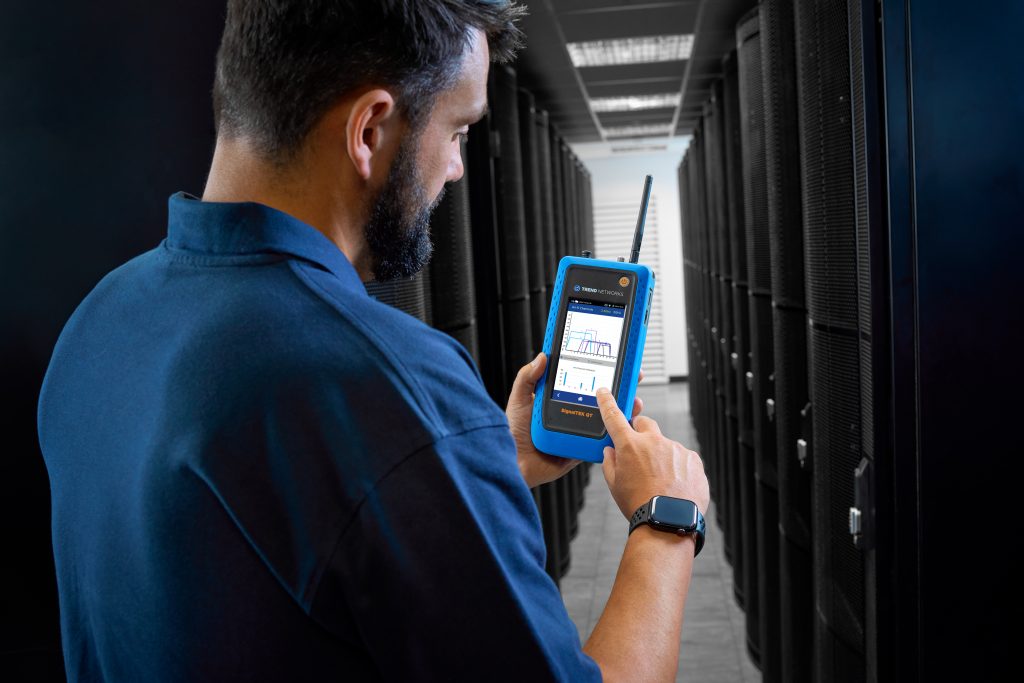
SignalTek QT combines copper, fiber and Wi‑Fi qualification into a single handheld, ideal for mixed environments and reducing the need for repeat visits.
For Wi‑Fi, you can scan access points, view channel utilization, and run ping, traceroute and device scans to pinpoint congestion and upstream faults. For the wired side, it qualifies copper links from 10 Mbps to 10 Gbps, including 2.5 and 5 Gbps, helping you prove the backhaul is not the bottleneck.
You can also verify PoE delivery up to 90 W with pass or fail results, ensuring access points and cameras receive the power they need. The AnyWARE Cloud workflow captures tests and produces shareable reports so you can hand over proof of fix immediately.
Solve slow Wi‑Fi, dead zones and interference with a tester
Most Wi‑Fi problems can be solved quickly when you measure the right things. A tester gives installers and IT teams evidence to act on, and SignalTek QT lets you validate wireless, cabling speed and PoE in a single visit. Find out more about our SignalTek QT tester today.
You might also be interested in our Wi-Fi Testing Guide: Tools, Techniques, and Best Practices blog.